
A SIMPLE GUIDE
How to highlight a PDF for free
Bring attention to the parts that matter. Choose your color and transparency, then select the words you want to highlight.
Open PDF editorFree to use. No signup. Your PDF stays on your device.
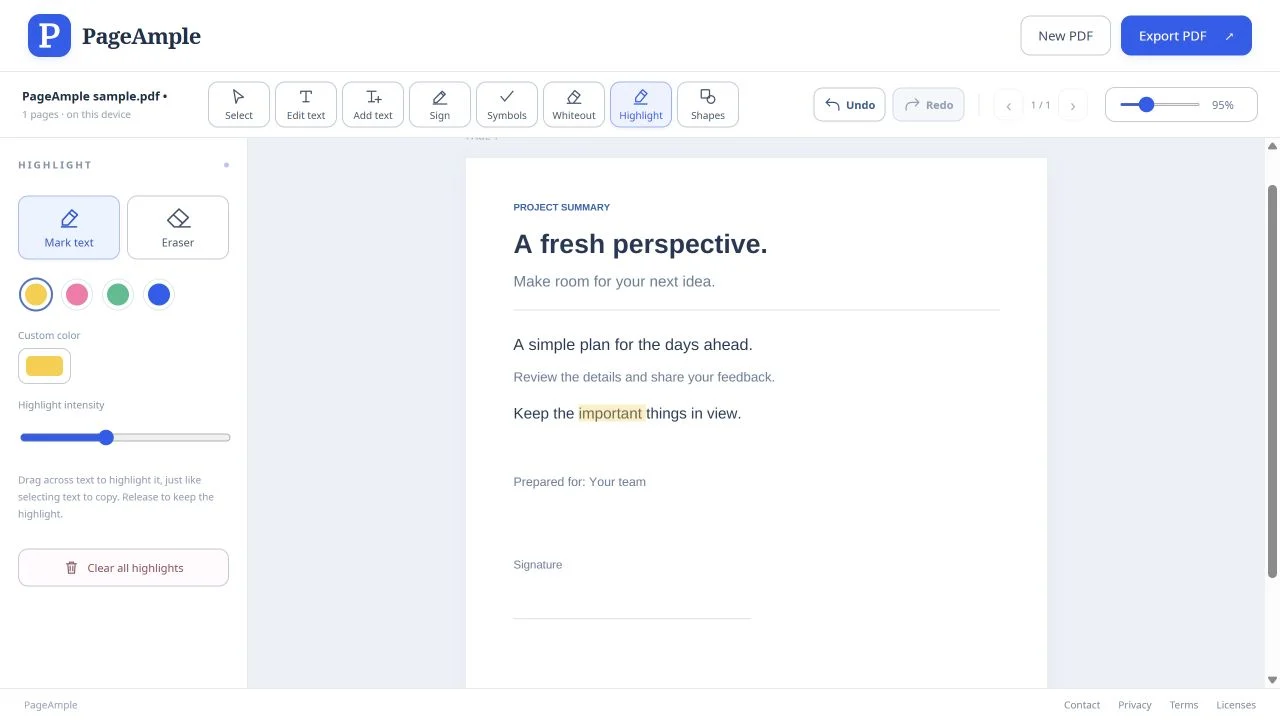
Highlight a PDF, step by step
Open your PDF and choose Highlight
Select Open PDF in PageAmple and choose a document. Click Highlight in the toolbar.
Choose a color and transparency
Use the color presets and Highlight intensity slider in the left panel to set how your highlight should look. Pick a shade that keeps the text easy to read.
Select the text
Drag across the words you want to mark, as you would when selecting text to copy. Release to apply the highlight. Repeat for other passages.
Adjust and export
Use Eraser in the left panel to remove a specific PageAmple highlight, or Clear all to remove the highlights you added in this document. Undo can reverse a change. Choose Export PDF when you are finished.
Good to know
Can I highlight a scanned page this way?
Text highlighting needs selectable text that PageAmple can process. An image-only scan has no text for this tool to select, and OCR is not currently available.
Will Eraser remove highlights already in my original PDF?
The highlight eraser removes highlights added in PageAmple during your current editing session. It does not remove colored text backgrounds or highlights that are part of the original PDF.
Does highlighting change the words?
A highlight adds a transparent colored mark over the selected text. It does not replace the words. Review the exported PDF to check the appearance in your PDF viewer.