
A SIMPLE GUIDE
How to add a signature to a PDF
Create a signature that suits you, place it on your document and export a copy. Your PDF and signature are processed on your device.
Open PDF editorFree to use. No signup. Your PDF stays on your device.
Sign a PDF, step by step
Open the document and choose Sign
Open your PDF in PageAmple, choose Sign in the toolbar and select Add signature in the left panel.
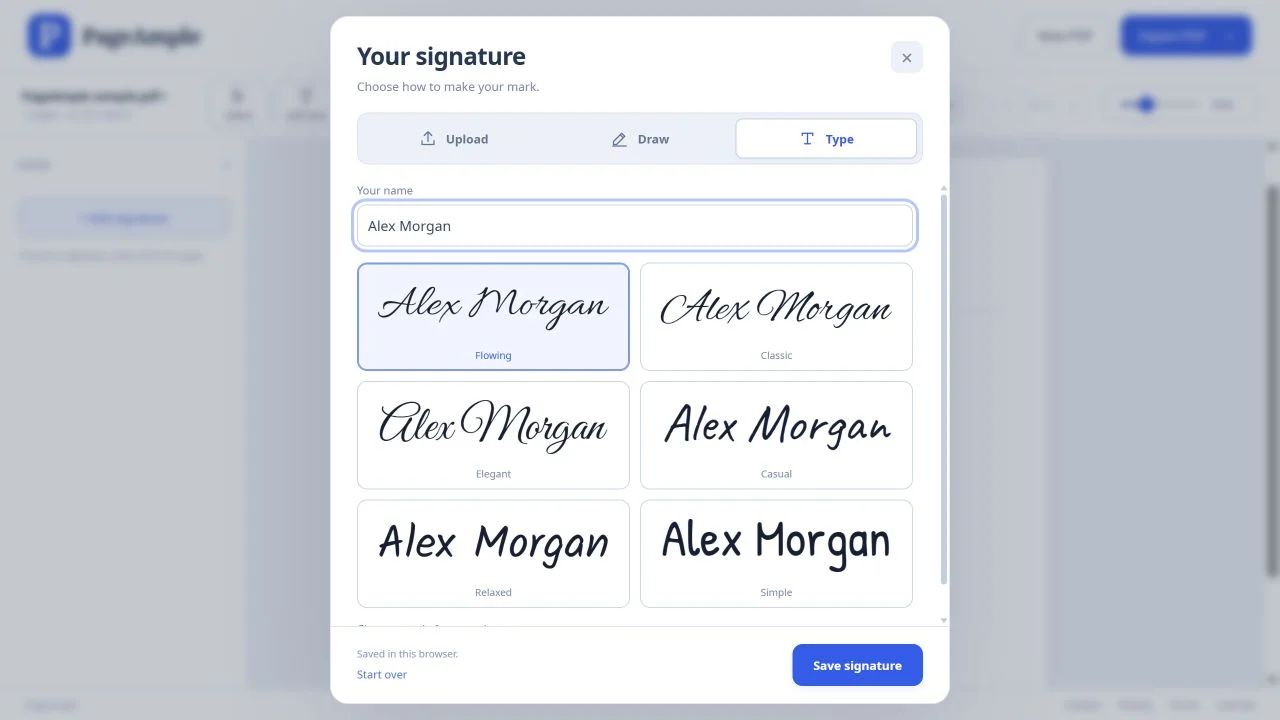
Create your signature
Choose Type to enter your name and pick a handwriting style. Choose Draw to sign with your mouse, touchpad or touch screen. Choose Upload to use a signature image from your device.
Save and place it
Give the signature a name and select Save signature. Choose it in the left panel, then click the page to place it. Drag to position it, resize with the corner handle and confirm with the checkmark.
Check the placement and export
Make sure the signature is clear, correctly sized and on the right page. Choose Export PDF to save your signed copy.
Good to know
Where is my saved signature stored?
Saved signatures stay in this browser on this device. They are not automatically shared with other browsers or devices. You can remove one from the Sign panel; clearing site data also removes saved signatures.
Can I change the signature’s color?
Typed signatures have a small set of color choices in the controls above the selected signature. Uploaded signatures retain their image colors.
Is this a certificate-based digital signature?
No. PageAmple adds a visual signature to the page. It does not verify the signer’s identity or create a certificate-based digital signature. Use a dedicated signing service if the recipient requires identity verification or an audit trail.